
Dungeon maps, explanations for the loot in your bags, groups in your language and voiced quests: pick the tools that solve a problem for you. Browse the author screenshots, build your own setup and use the commands at the end to enable or disable quest-object sparkles.
What to install first
You do not need the whole list. Start with what is missing from your setup: sorting loot, finding a group or navigating a dungeon. Use the table to jump straight to the right addon.
| What you need | What to install |
|---|---|
| Understand an item in your bags | Keep or Toss |
| Maps inside dungeons | Dungeon Crawler Forever |
| Detailed world and cave maps | High Fidelity World Map + Art |
| More visible herbs, ore and quest objects | Lueur or Forever Loot Sparkles |
| Move overlapping windows | Forever Move |
| Read and listen to quests | Dialogue UI and Spoken |
| Find a group in your language | ForeverLFG |
| Quest sparkles without an addon | Commands and macro buttons |
| Mail materials to alts | Forever Mail |
| Camp buffs | Happy Camper |
| Rare mobs and loot | RareNet |
| Plan profession leveling | TradeCraft |
| See what is worth crafting for profit | Mastercraft |
| The tools from our leveling routes | General addons and class addons |
Keep or Toss: Forever - keep it or vendor it?
Bags full of meat, reagents and odd quest items you are afraid to throw away? Keep or Toss explains potential uses in the item tooltip: quests, recipes, class reagents or gear you can equip later. It helps you decide what belongs in the bank and what can go to a vendor.
Type /kot to browse items and the reasons to keep them. You can flag an item manually. Questie adds quest information; Syndicator adds bank and alt data. Both are optional.
“No use found” is not a guarantee that an item is worthless. Beta data changes, and the addon marks new Forever items separately rather than rushing to label them junk. Download on CurseForge
Dungeon Crawler Forever - dungeon maps, bosses and quests
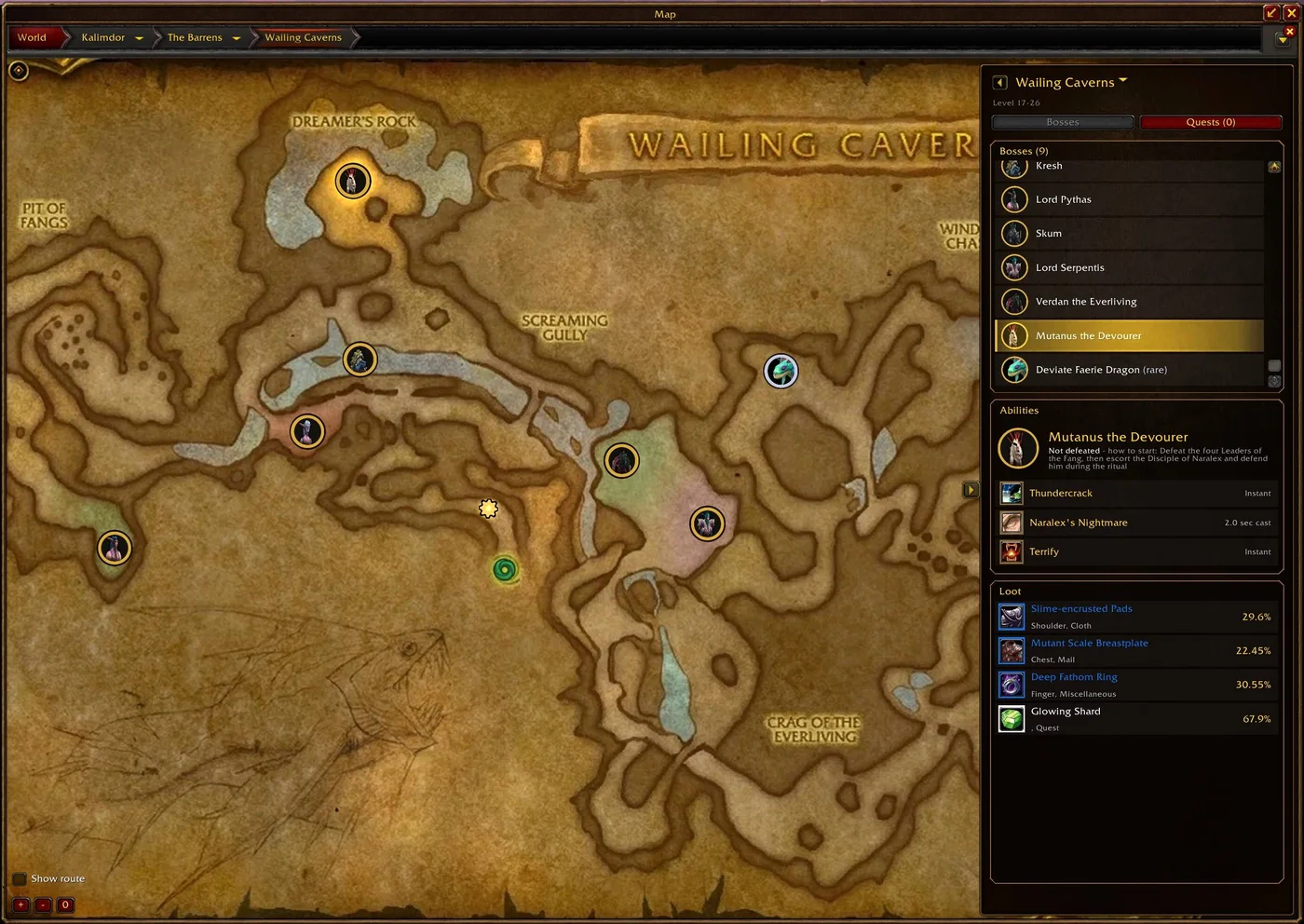
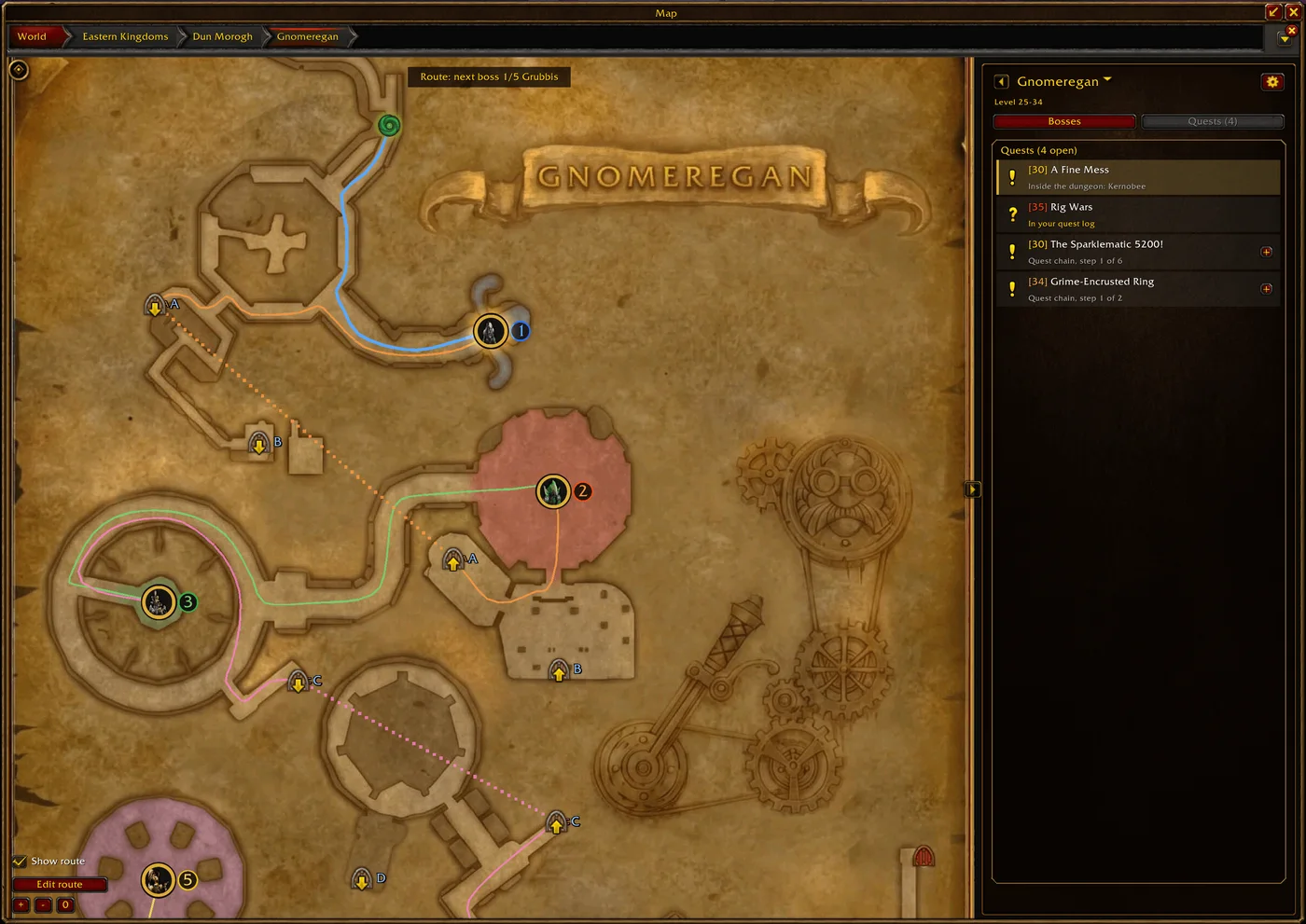
Especially useful before your first run through an unfamiliar dungeon. Open the map to see floors, connections and bosses. Matching letters identify linked stairways, helping you work out where a passage leads before taking the party down the wrong corridor.
Boss pins show abilities and loot, with quests, keys and prerequisite chains collected alongside them. New Forever dungeons are included. Use /dm for the map and /dm config for settings; you can also hook it into your normal map key.
Beta caveat: the author is still refining the data. Changed quests may retain older level requirements, so check availability in-game. The map helps with navigation, but you should still check the route and mechanics. Download on CurseForge
High Fidelity World Map and Art - a more detailed world map
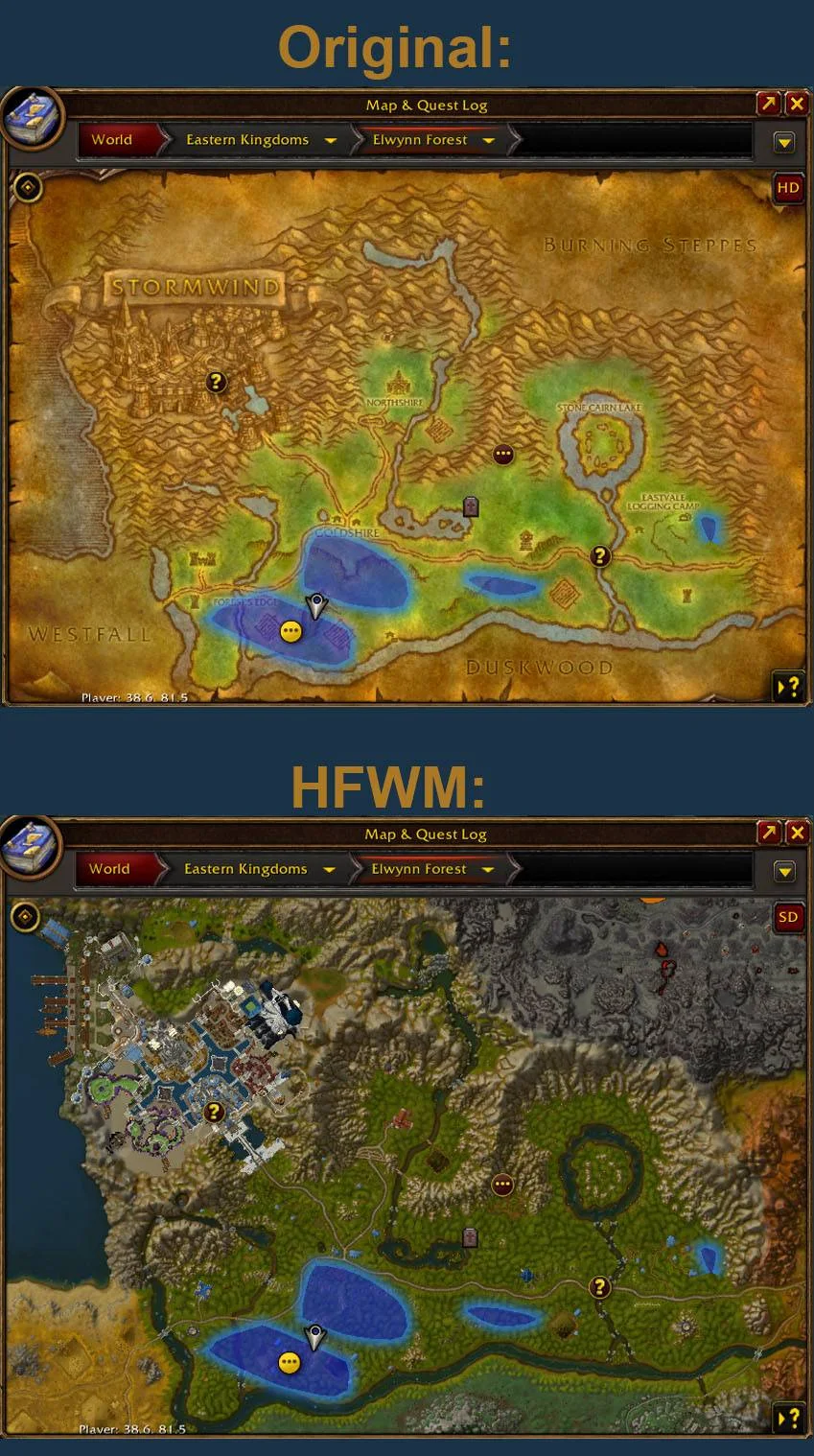
HFWM builds its map from minimap textures. The HD/SD toggle lets you compare it with the standard map: roads, buildings and terrain are easier to pick out in the detailed view. Extra zoom is available, while unexplored areas remain covered.
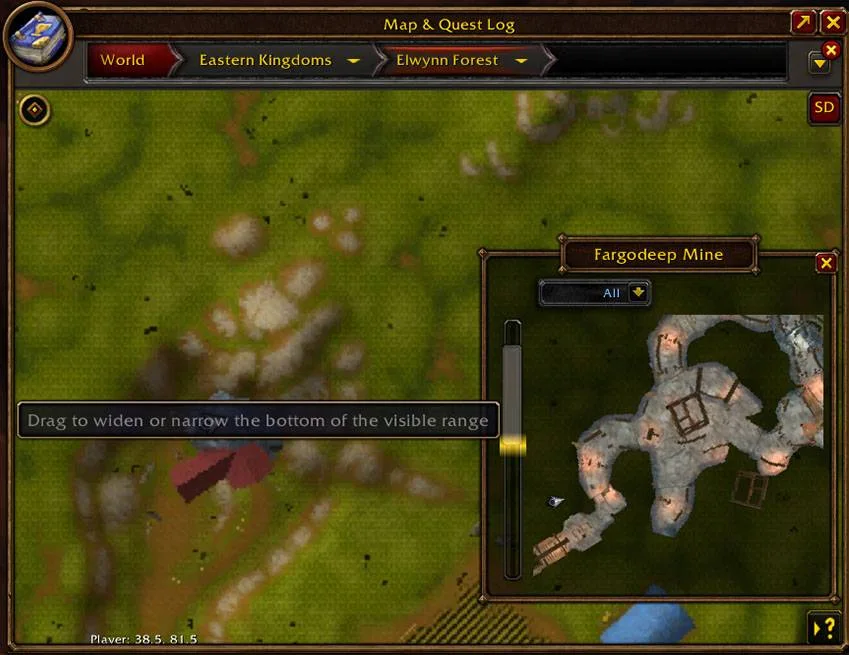
Caves get an interior view with a depth slider. Unlike Dungeon Crawler’s boss and loot journal, HFWM mainly helps you read the terrain. Download High Fidelity World Map
Do you need High Fidelity World Map: Art?
Art is an optional pack of large world and continent textures, with no settings of its own. HFWM’s zone and cave maps work without it. If disk space matters, start with the main addon and add Art when you want the larger detailed maps. It does nothing on its own. Download the Art pack
Lueur - make interactable objects easier to spot
Lueur highlights the herb, ore vein, chest or quest object in front of your character. Pick an effect and adjust its brightness, size and colour. Handy when an object blends into the grass or scenery.
It is not a radar for every nearby node. It uses the game’s soft targeting to highlight one object: the one your Interact key would currently use. Range is limited to roughly 15 yards. The effect distinguishes an out-of-reach object from one you can use. Open settings with /lueur. Download on CurseForge
Alternative: Forever Loot Sparkles
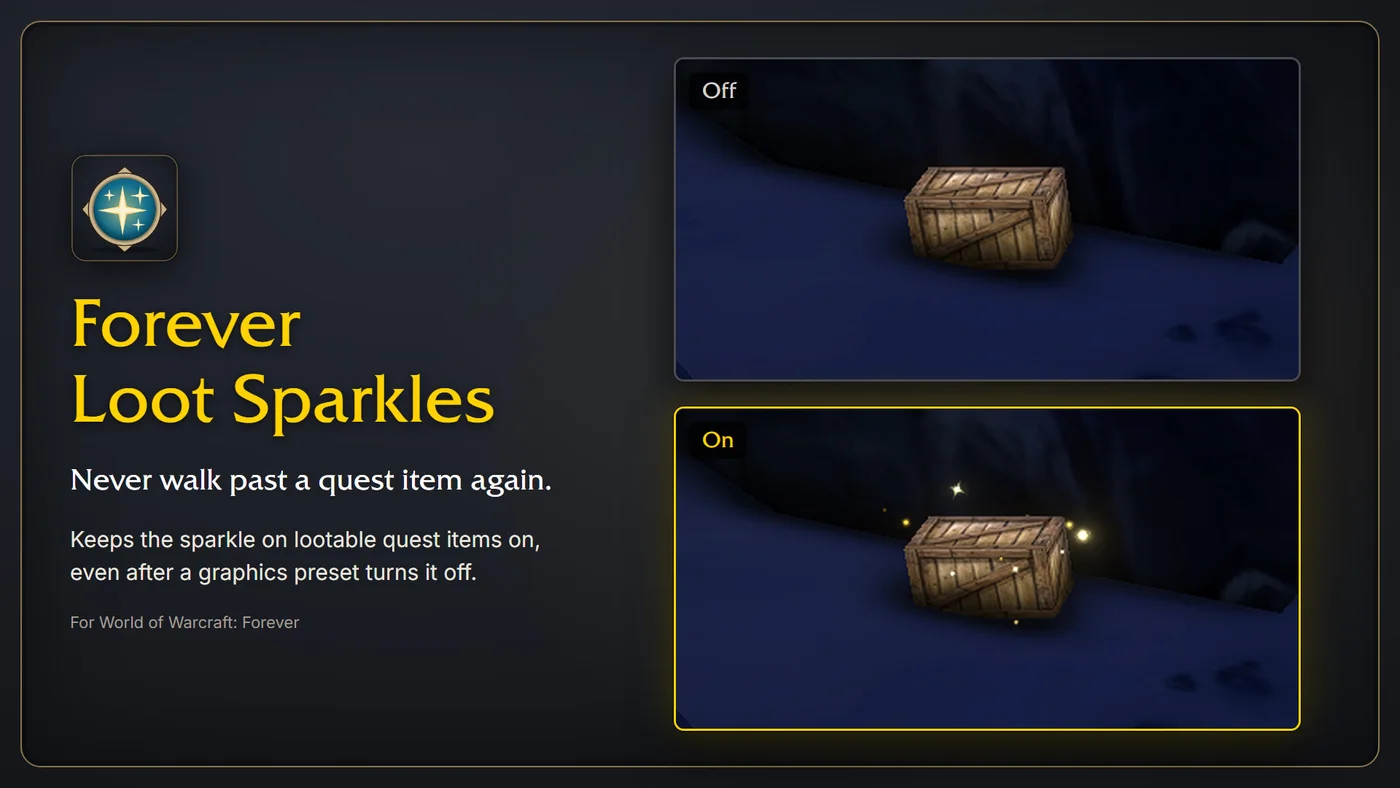
Restores quest-object sparkles and keeps the setting applied after graphics preset changes. It can also highlight nearby herbs and ore. Try it if you prefer simple glints over a selection of visual effects.
Choose this or Lueur. The Forever Loot Sparkles author warns that running both makes them interfere with the same targeting settings. Before removing it, switch off its features in the options so it can restore saved values. Download on CurseForge
Forever Move - move windows and remember their positions
Character window covering your bags? Want the spellbook somewhere else? Forever Move lets you drag standard windows and remembers where you leave them. You can require Shift, Ctrl or Alt while dragging to avoid accidental moves.
Type /fm with no window under the cursor to open settings. Hover another window and use the same command to make it draggable. /fm reset clears saved positions. This adds flexibility to the default UI rather than replacing your action bars and raid frames. Download on CurseForge
Dialogue UI - quests that are easier to read
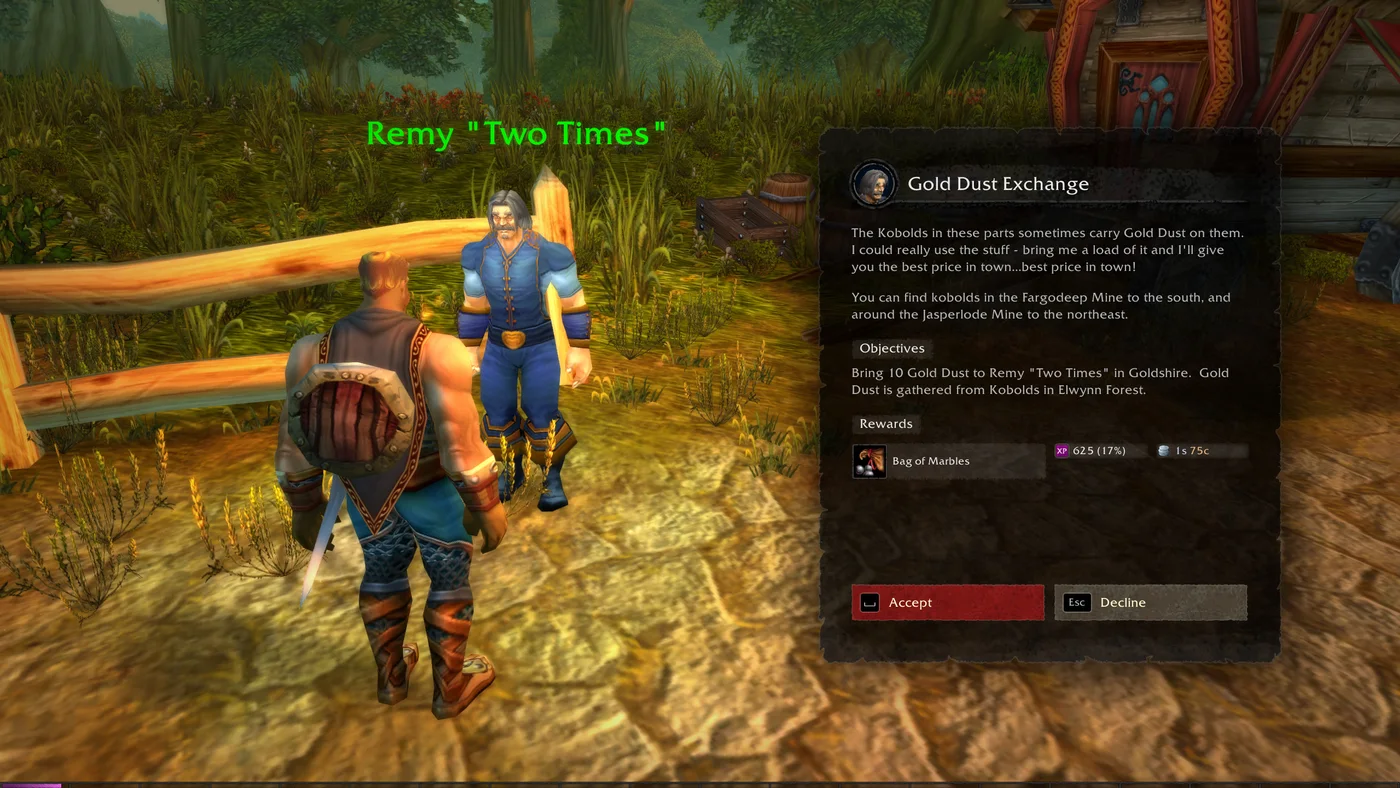
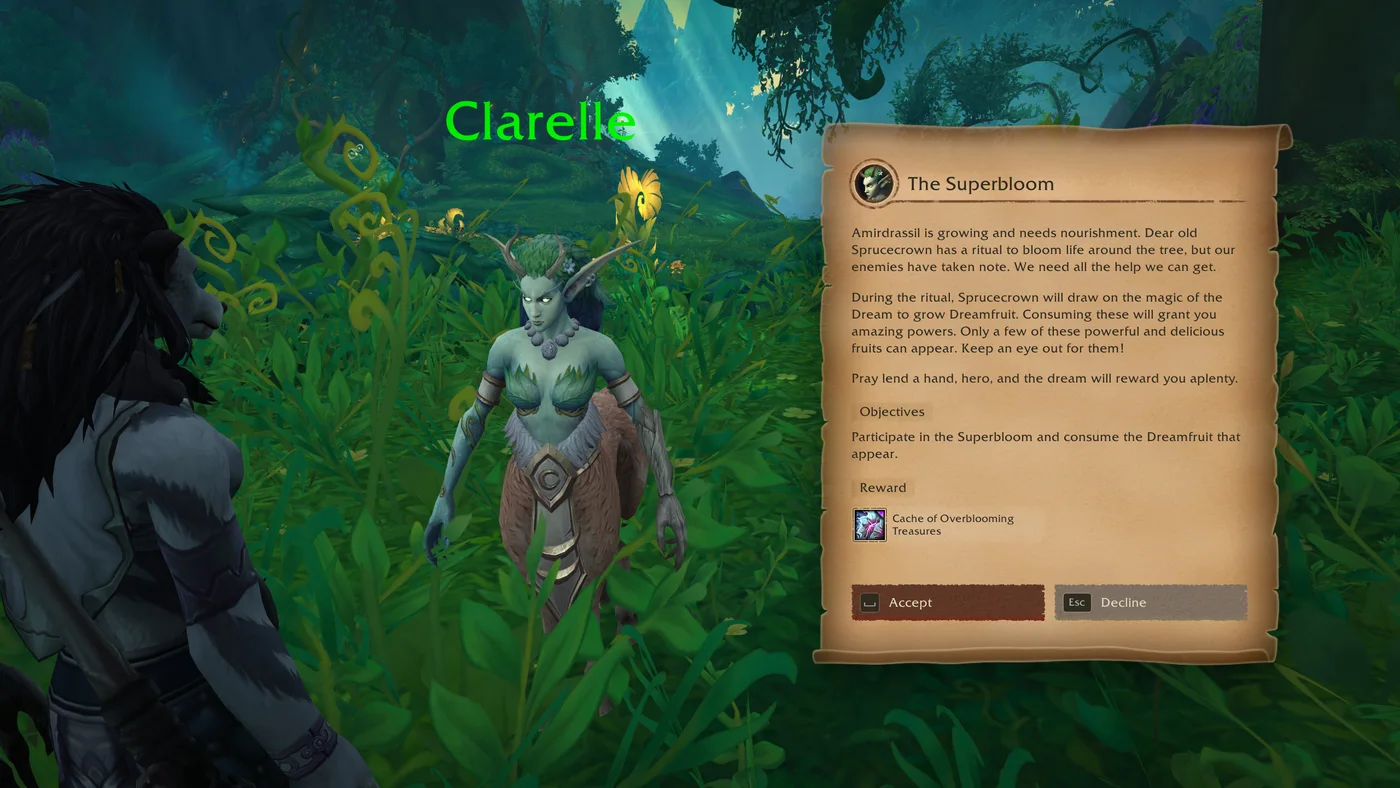
Reworks NPC conversations with larger text, keyboard or gamepad choices, and dedicated presentation for books and quest items. Useful if you enjoy the story but find the standard quest window tiring to read.
Font size is adjustable, and camera movement can be disabled. Dialogue UI changes presentation rather than adding voiceover; Spoken below reads quests aloud. Try it without Immersion first instead of enabling several addons that replace the same quest window. Download on CurseForge
Spoken - English quest voiceover, zone stories and books
Listen to a quest while you head to the next objective, hear a zone’s story when you first arrive, and let books and letters read themselves. Spoken voices quest dialogue, NPC gossip, zone lore and books with AI voices matched to each character. It is fan-made, not Blizzard-recorded dialogue.
The main addon holds no audio: install the voice packs for the modules you want, or it stays silent. The simplest option is Spoken: English, which pulls in the addon and every English pack through the CurseForge app; it is not meant for manual download. Audio takes far more disk space than the interface. The author also offers German, French, Spanish, Portuguese and other packs.
/sp stops or replays the current line, /sp skip skips it, /sp stop clears the queue and /sp options opens settings. Quests, zone stories and books share one queue, so nothing talks over anything, and the game turns its music down while a line plays. Download Spoken or Spoken: English on CurseForge.
ForeverLFG: Language Search - find groups and quest partners
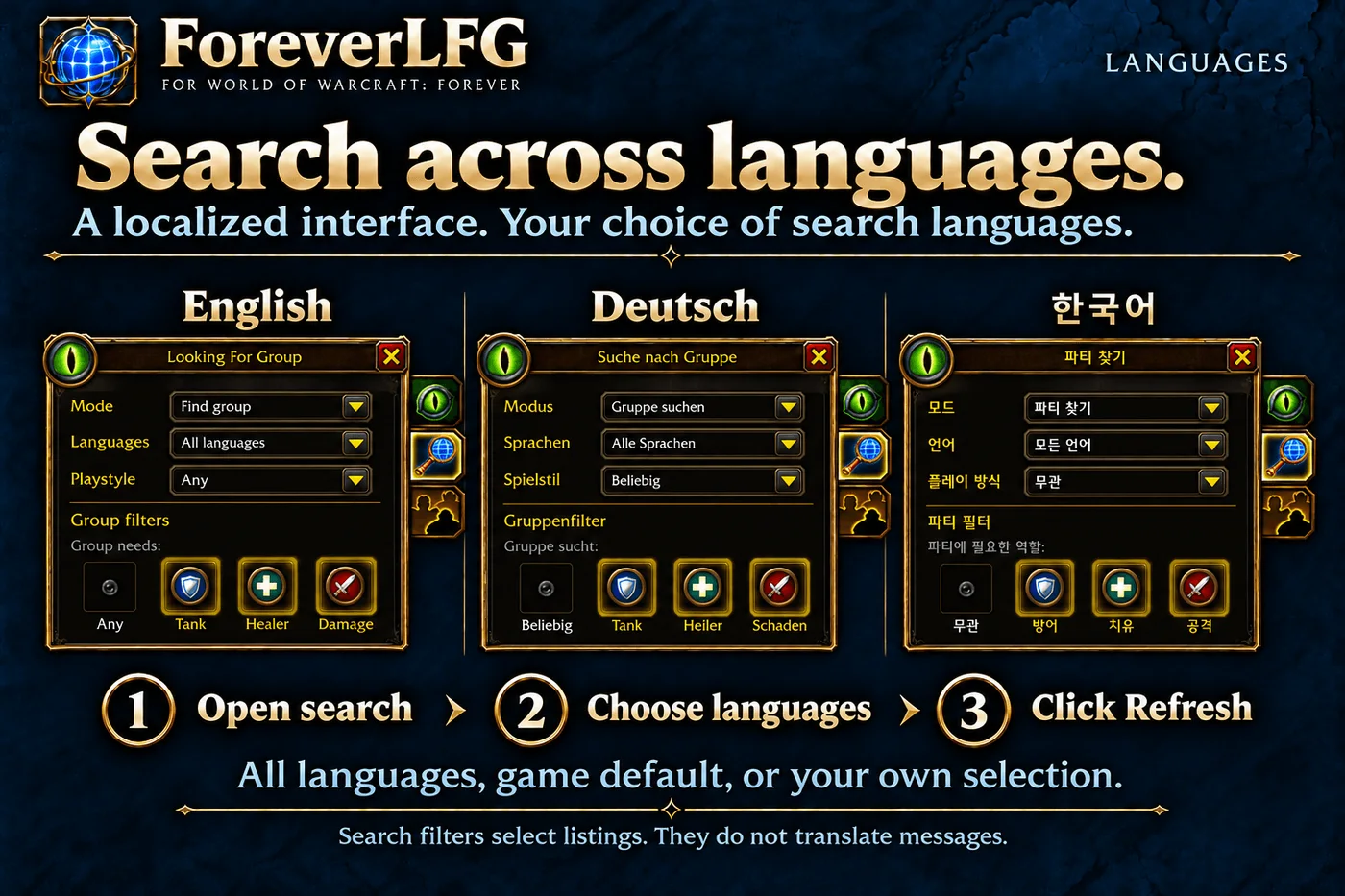
Adds language and role filters to group finding. Search suitable listings across multiple languages instead of wondering why so few parties appear.
A separate feature looks for players with the same active group or elite quests in your current zone. Discovery outside your party requires compatible addon versions on both players. Matching quests do not guarantee the same layer or phase, so coordinate and group up before travelling.
/flfg quests opens quest partners; /flfg settings opens options. The addon helps you find people, but does not bypass dungeon entry requirements. Download on CurseForge

Forever Mail - send materials to alts with less fuss
If cloth goes to your tailor, ore to your blacksmith and greens to your enchanter, Forever Mail saves repeated mailbox clicks. Choose a recipient from your characters, friends or guild and prepare attachments using a saved list.
It records incoming and outgoing mail. Shipping lists only prepare attachments: you still send the message yourself. Check the recipient and contents, especially when using several bank alts. This is Forever Mail by Pallando_wow; CurseForge has projects with very similar names.
Happy Camper - find a camp with the buffs you need
Want to refresh camp buffs before a dungeon but unsure where people are camping? Happy Camper marks known fires on the map and minimap, including objects and their buffs. Choose the buffs you want to find a suitable camp.
Information comes from other addon users, so this is not a list of every camp on the server. Check how recently it was seen, how long it will last and whether the layer matches. It also tracks your buffs and helps plan who brings which camp objects. /hc opens the window; /hc search opens camp search. Download Happy Camper
RareNet - rare mobs, loot and sighting reports
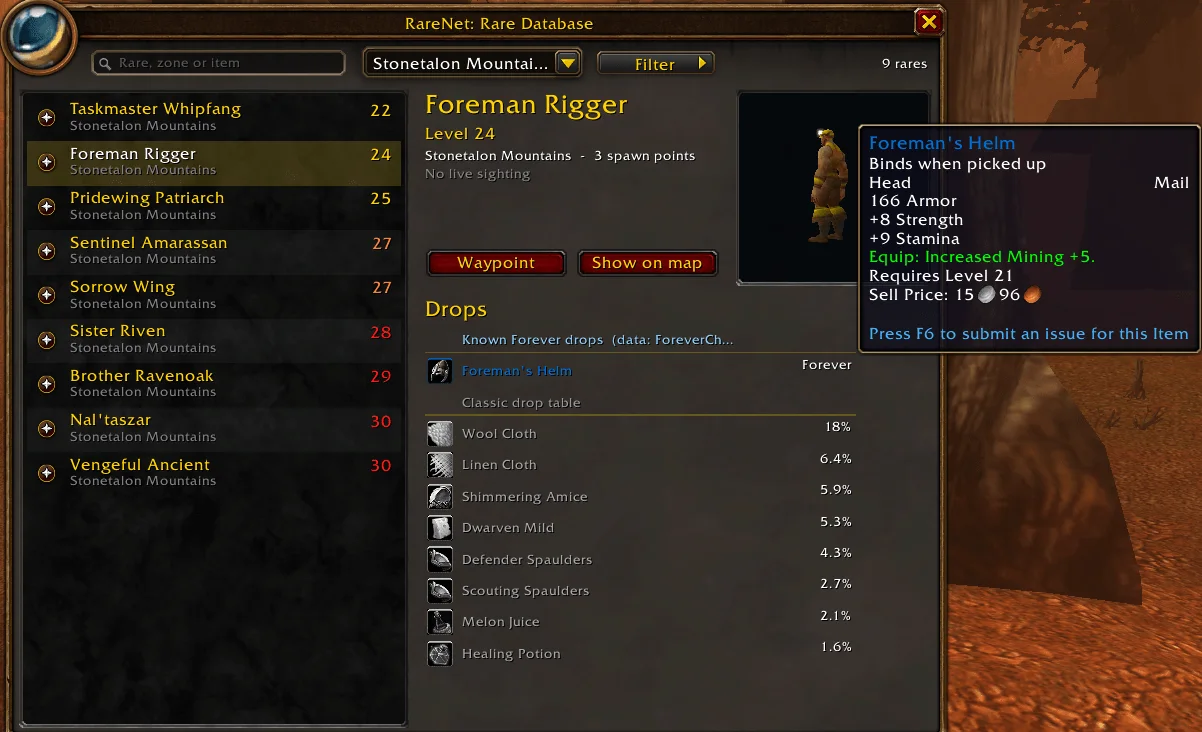
For anyone who likes a rare-mob detour on the way to a quest. RareNet collects player sightings, marks locations and shows loot information, including new Forever finds. It includes favourites and a tameable-beast filter for hunters.
A sighting is a reason to check, not a promise the mob is still there. Report age and layer matter, and respawn times are estimates. The addon does not change your layer itself. Open the database with /rarenet db; with TomTom installed, you can use its arrow. Download RareNet
TradeCraft - plan your profession leveling
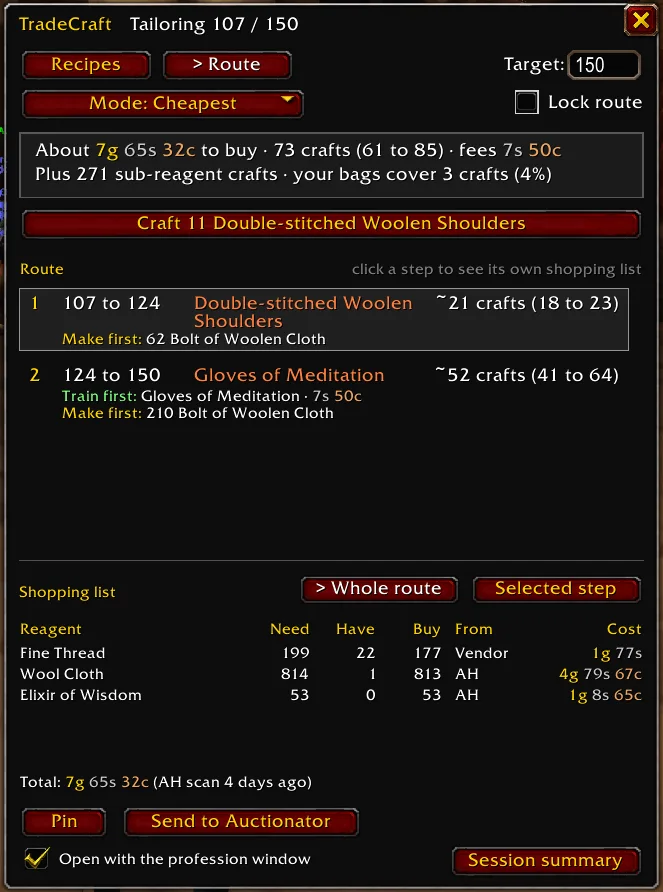
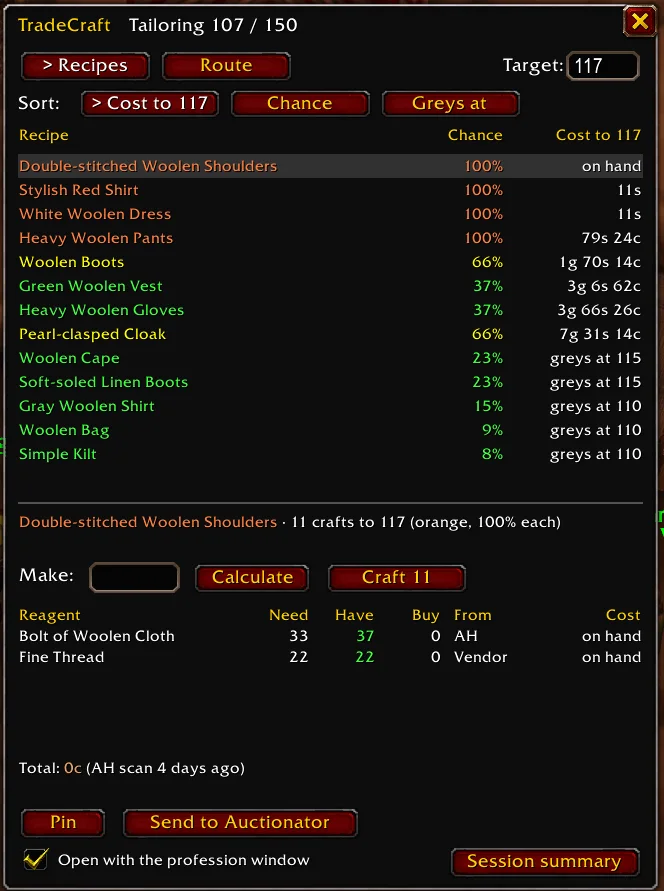
Set a target skill and choose your approach: spend less gold, make fewer crafts, use existing materials or avoid the AH. TradeCraft builds a route and shopping list, including what to learn from a trainer and which intermediate items to make first.
Pin the list on screen or send it to Auctionator. Open the TradeCraft tab in your profession window; settings are at /tc settings. This is still a beta: costs depend on available prices and each craft is not guaranteed to grant skill. Check the plan against your recipes and current prices before a big purchase. Download TradeCraft
Mastercraft - what is worth crafting for profit
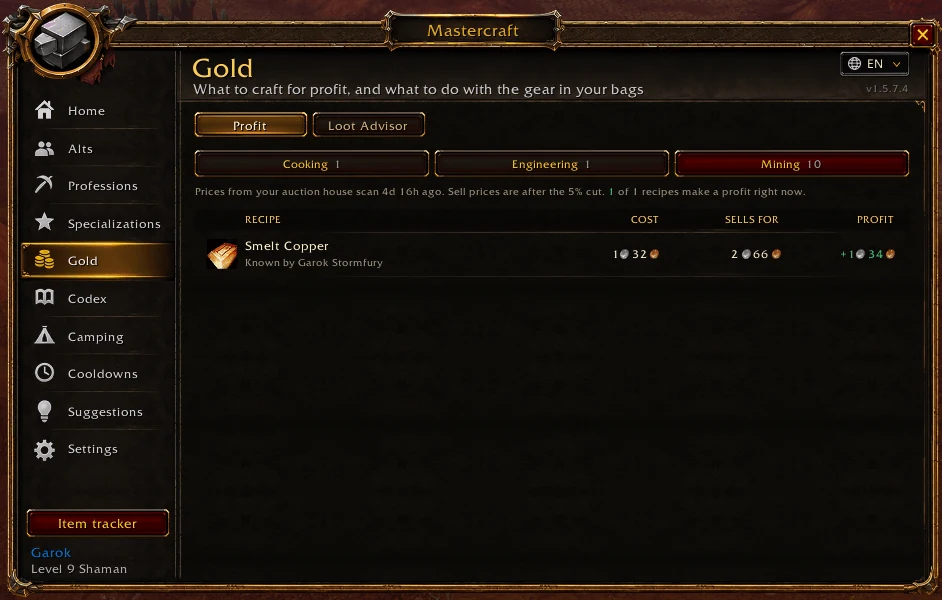
Mastercraft adds up what a recipe costs in reagents and what the result sells for on the auction house. Select a recipe in your profession window and a card under it shows cost, sell price and profit. The Gold → Profit tab ranks every recipe you know by profit, best first, and sell prices already have the 5% auction cut taken off.
An example from the beta: in Engineering one Copper Bar becomes one Handful of Copper Bolts, and on the auction house a bar sold for about 2 silver while the bolts went for about 9. Mastercraft looks for exactly these pairs: cheap reagents and goods that players leveling the same profession want to buy.
The numbers only work after an auction house scan. At the auctioneer, press the scan button in the addon window or type /mc scan. Open each of your profession windows once so the addon learns your recipes, and visit the bank so it counts reagents there and on your alts. /mc opens the addon, /mc gold shows profit by recipe, /mc setup repeats the first-run setup.
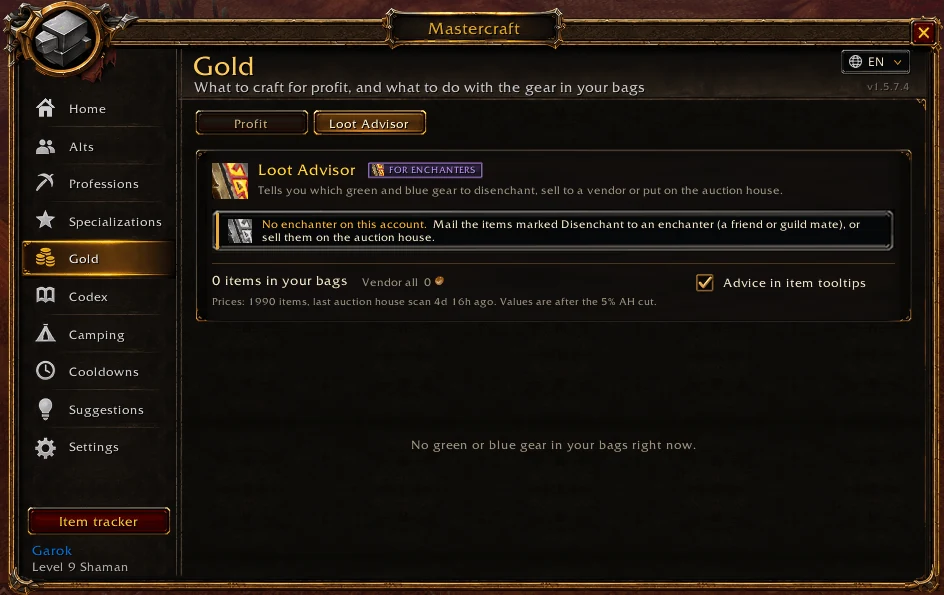
The Loot Advisor tab tells you which green and blue items to disenchant, vendor or put on the auction house. It also has profession leveling guides, a materials tracker and cooldown tracking. Auctionator is optional, but if you have it, Mastercraft uses its prices too. Download Mastercraft
The addons from our leveling guides
These are the tools already recommended in our routes. Pick by task: you do not need two bag replacements, two quest-dialogue windows and three map addons running together.
Quests, waypoints and maps
Questie marks quest givers and objectives so you miss fewer quests along your route. Its database for new Forever quests may lag behind patches.
TomTom provides a waypoint arrow. Coordinate buttons in our routes copy /way commands for it. The addon does not choose quest order; follow the guide for that.
Leatrix Maps improves the standard map with zoom, zone information and extra markers. If you use HFWM, test them together before configuring both.
Forever Quest Tint highlights text for new Forever quests. A small convenience for Classic veterans who want to notice added content.
Bags, trading and everyday conveniences
Leatrix Plus bundles conveniences such as junk selling, repairs and window interaction settings. Leave automatic quest acceptance and turn-in off if you want to read or listen to dialogue first.
Baganator helps organise bags and your bank. Bagnon is an alternative if you prefer its layout. Pick one rather than running both.
Auctionator simplifies shopping and listings and remembers observed prices. Useful for materials and selling farmed items. A tooltip price is a reference from collected data, not a guaranteed sale.
Herbs, ore and fishing
GatherLite marks gathering locations and helps you build familiar farming loops. A pin shows a possible spawn location, not a guarantee that a node is currently there.
GatherMate2 is an alternative gathering-location log for recording your own finds. Map pins are separate from highlighting the actual object; Lueur or Forever Loot Sparkles handle that.
Nameplates, threat and leveling pace
Platynator customises enemy nameplates, including quest mobs, so you can keep track of targets in the world rather than hunting for a unit portrait in a crowd.
ThreatClassic2 shows threat on your current target, helping you judge when you might pull aggro from the tank. Choose the Forever file; features depend on data available from the client.
Details! is an option for a different meter and combat breakdown. For a simple damage comparison, try the built-in meter first; you may not need another addon.
Easy Experience Bar shows your XP pace. Useful for comparing questing with dungeon runs, though travel and turning in a batch of quests can skew short sessions.
Dungeon Journal from our earlier list helps you browse dungeon quests and loot. If you already use Dungeon Crawler Forever, see whether it covers your needs before installing overlapping reference tools.
Other voiceover and dialogue options
Wayfarer and CatQuest voice quests in Russian and need the Russian client, so skip them if you play in English.
Run one voiceover addon at a time: Spoken together with another voice addon means two narrators talking over each other.
Immersion changes NPC dialogue windows. It is an alternative to Dialogue UI rather than a required companion. Choose the presentation you find easier to read.
When addons break after a patch
BugGrabber collects errors, while BugSack provides a convenient viewer. They do not fix the problem, but help you send the author an accurate error report.
Degreen World Map Forever is a targeted fix from our earlier list for the green-map issue. If your map looks normal, there is no need to install it as a precaution.
ForeverAuras is a separate project for alerts and tracking events exposed by the client. Do not assume an old Classic WeakAura will work unchanged; check whether the Forever version supports the function you need.
Class addons from the leveling routes
These tools are not for everyone. Pick for your class and level, and check that you are downloading a Forever file.
- Rogue: Combo Points on Plate puts combo points on your target’s nameplate; NoPoizen reminds you about poisons. Handy if you would rather watch the fight than keep checking your portrait and weapons.
- Hunter: Hunter’s Field Guide and Hunter Pet Atlas help you find beasts and information about their skills. Feed Pet: Forever reminds you about feeding; Scope tracks ammunition. These are reminders, not automatic feeding or arrow purchases.
- Warrior: OverpowerAlert reminds you when Overpower is available, while WeaponSwingTimer Queuing helps track auto-attacks. If the built-in swing timer covers your needs, another is optional.
- Druid: Forever DruidManaBar keeps mana visible in forms so you can judge whether you have enough to shift out and heal.
- Mage: Mage Portal Dock - Forever gathers learned teleports and portals into a dedicated panel. Useful when the list of destinations outgrows your convenient keybinds.
- Shaman: Alchemy ShamanTotemTimers helps track totems; Shaman Alert Forever adds class reminders. Compare them with the built-in tracker and keep only useful alerts.
- Warlock: Soul Shards Forever or Shard Grid keeps your Soul Shard supply visible. Choose the counter you prefer.
- Healers: HealBot Continued and Grid2 provide party and raid-frame options. Start with one: a clear layout and readable indicators matter more than the number of addons installed.
Loot sparkles: console commands and macro buttons
These settings are documented by the authors of Forever sparkle addons. Enter the lines one at a time in chat, or save a block as a button in the macro menu. They are UI commands, not a combat macro. Fully restart the game if the effect does not update.
/console outlineModeShowLootEffectWhenDisabled 1
/console graphicsOutlineMode 0
/console OutlineEngineMode 0
Disables outlines and replaces them with sparkles on lootable quest objects. It does not add its own herb or ore highlights; that requires an addon. Changing graphics presets may reset the result.
/console outlineModeShowLootEffectWhenDisabled 0Turns sparkles off without restoring the previous outline mode. If an addon maintains this setting, disable that feature first.
/console graphicsOutlineMode 2An outline-restoration option from the author’s instructions. If you previously used a different setting, select it manually in graphics options. Fully restart the client afterward; /reload may not be enough.
/dmRequires Dungeon Crawler Forever. Useful as a button on a spare action-bar slot.
/sp stopRequires Spoken. Stops the current line and clears the playback queue.
Build a setup without unnecessary conflicts
- For your first dungeon: Dungeon Crawler Forever and ForeverLFG. For loot: Keep or Toss. Add the rest as needed.
- Choose one highlighting approach: Lueur, Forever Loot Sparkles or manual commands for quest objects. Avoid several addons repeatedly overwriting the same settings.
- Test the world map with one main modifier first. If HFWM conflicts with your setup, temporarily disable other map addons and re-enable them one at a time.
- A few tools from this article are enough to start. Our leveling guides retain short recommendations alongside the routes; return here for details.
- If a window breaks after a patch, update the relevant Forever addon and test it separately. Do not delete the entire WTF folder: it holds saved settings.
Frequently asked questions
Do I need every addon on the list?
No. Choose by task. Multiple addons for the same map, dialogue window or highlight settings can interfere with each other.
Does HFWM: Art work without HFWM?
No. It is an extra texture pack for the main addon. HFWM zone and cave maps work without Art.
Will the sparkle commands reveal every nearby ore vein?
No. The commands restore quest-object sparkles. Lueur and Forever Loot Sparkles highlight resources through the game’s selection of one nearby suitable object.
How do I install addons in WoW Forever?
The easiest way is the CurseForge app: pick the Forever version and it fetches dependencies for you. To install manually, unpack the archive into the client’s Interface/AddOns folder; on the beta that is _classic_beta_/Interface/AddOns. Download the Forever (1.60.1) file rather than Retail or Classic Era, then restart the game.
Do Classic addons work in WoW Forever?
Not always. Forever has its own client and interface version, so a Classic Era addon may fail to load or throw errors. Look for a file marked Forever on the addon page, and if something breaks after a patch, BugGrabber and BugSack help you send the author an exact error.
Is there WeakAuras for WoW Forever?
There is no separate WeakAuras release for Forever. ForeverAuras is a separate project for similar alerts, but old Classic auras may not work in it without changes.
Is there English quest voiceover?
Yes, fan-made: Spoken voices quests, NPC gossip, zone stories and books with AI voices. Install Spoken: English through the CurseForge app to get every English pack at once.
Which addon shows what is profitable to craft in WoW Forever?
Mastercraft: after an auction house scan it shows reagent cost, sell price after the 5% cut and profit for each recipe, and its Gold → Profit tab sorts recipes by profit. Prices come from your last scan, so rescan before you buy materials. TSM has no Forever version.